
Video Resizer
Video Resizer
One video, resized for
every platform that needs it
Adapt your video to the frame shape you need. Use the available aspect-ratio workflow in Aixcut, review the composition, and choose an export resolution that suits your destination.
Demo is a visual and interaction illustration, no real service is connected.

Use Cases
Wherever the content goes,
the frame fits.
Short-form video, long-form video, product display or multi-platform distribution. Give the same footage the right canvas and viewers see what they are meant to see.
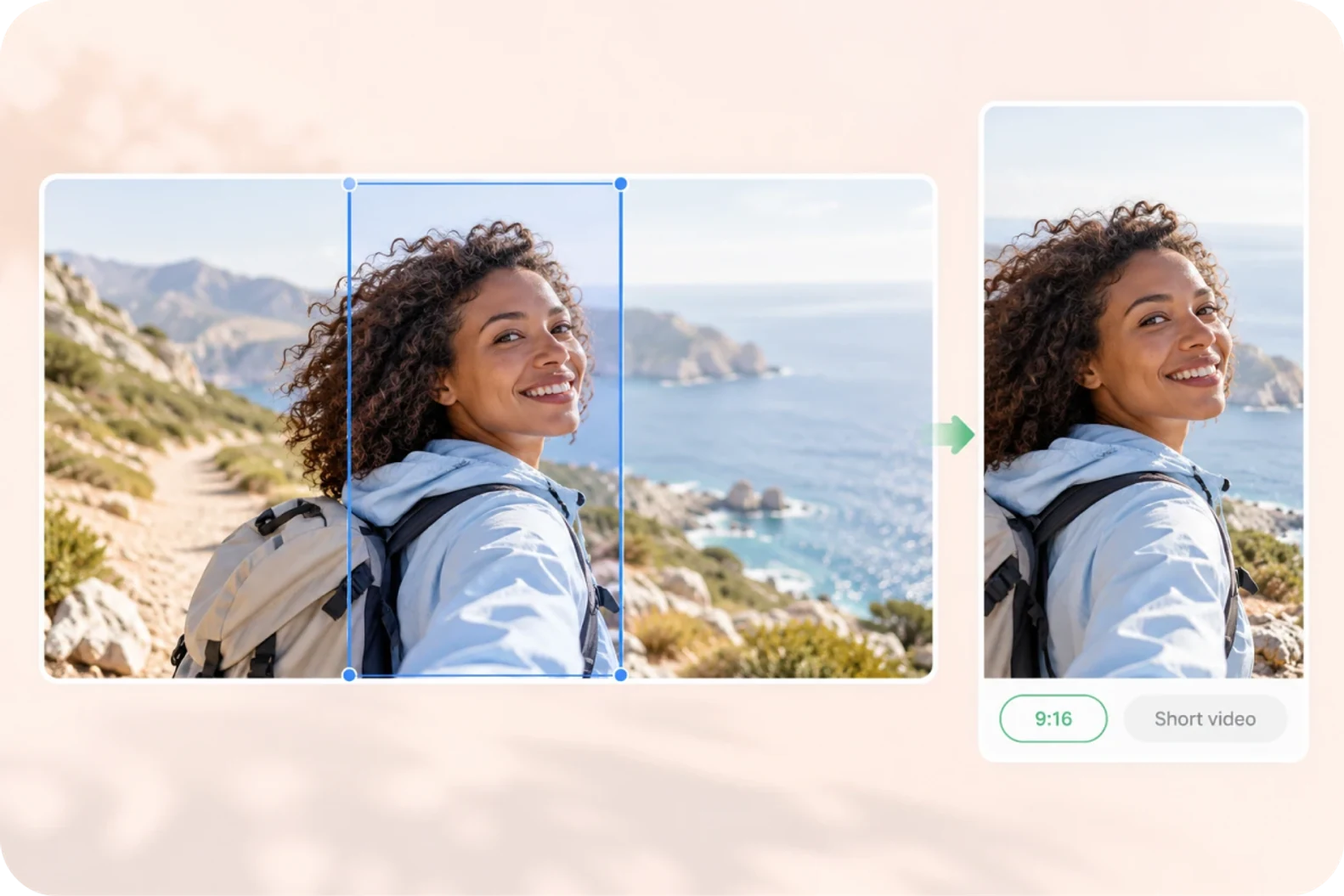
01 / SHORT-FORM VIDEO
Horizontal footage, standing up in vertical.
Turn horizontal footage into 9:16 for TikTok, Reels and Shorts. Adjust the framing to keep the subject and the point of the shot, then export at that size.
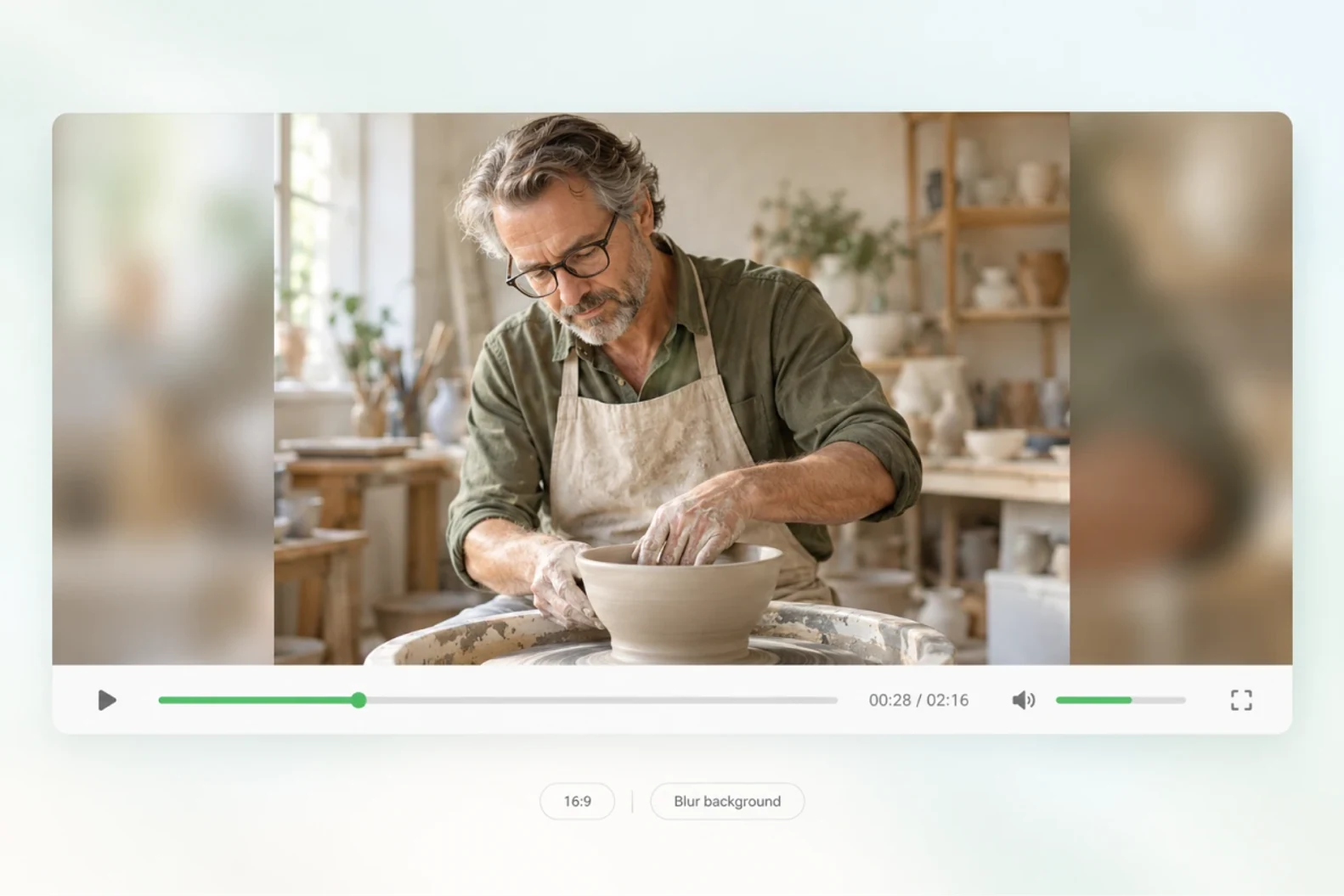
02 / LONG-FORM VIDEO
Shot vertical, still watchable horizontal.
Turn vertical footage into 16:9 for YouTube or a website. Fill the sides with bars or a blurred background to keep the whole frame.
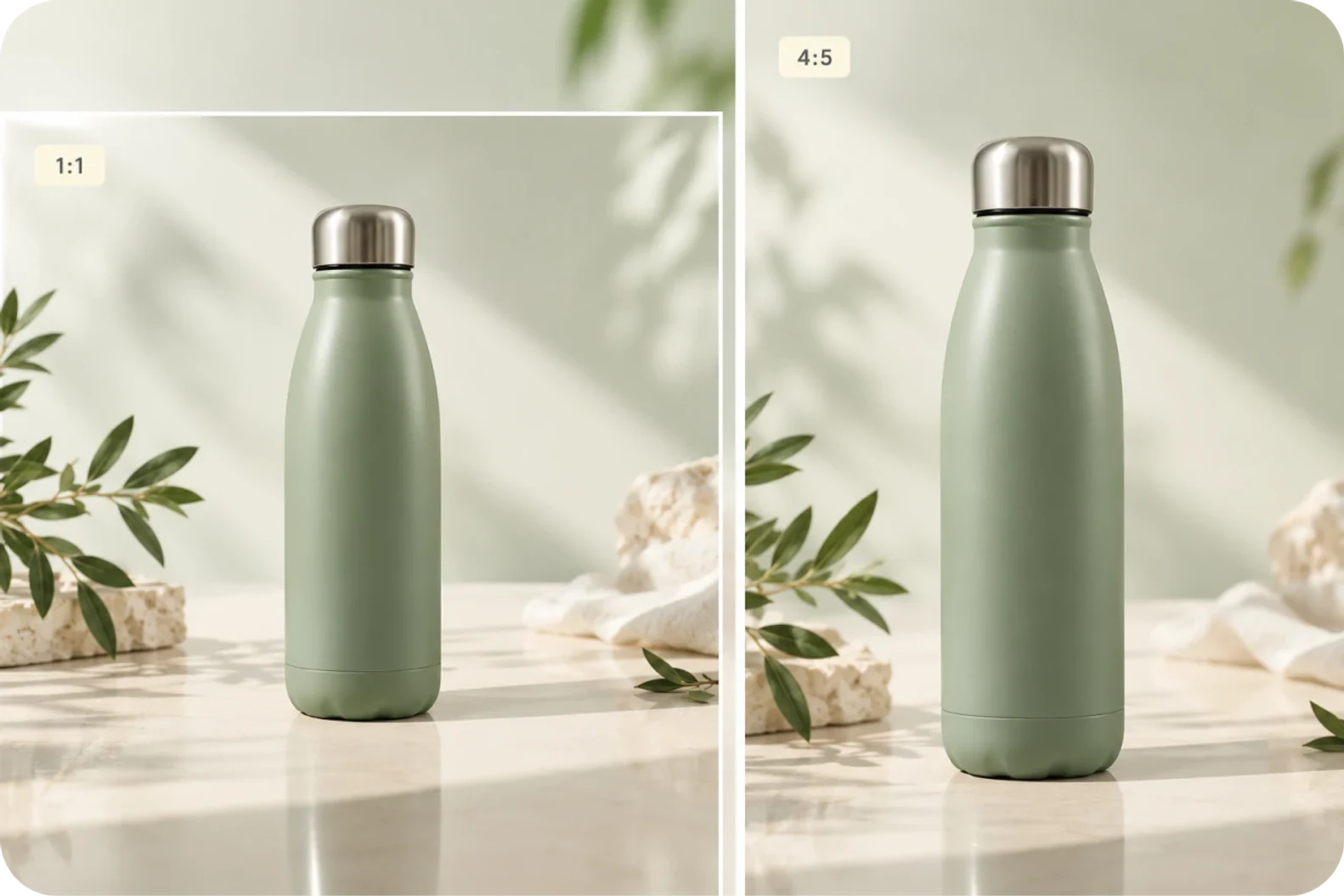
03 / E-COMMERCE
Product video, sized the way the page needs it.
Change a product video to the ratio and size an ecommerce detail page asks for. The product shows in full and the frame fits the slot.

04 / MULTI-PLATFORM
One piece of content, one version per platform.
Adjust the ratio and size of the same video for each platform. Landscape, portrait and square all have a version that works.
Core Features
Get the size right,
and look after the frame.
From picking a ratio to handling the empty space, keep what matters inside the frame.

01 / PLATFORM PRESETS
Pick a platform, skip the maths.
Pick the common sizes for YouTube, Instagram, TikTok, Facebook and LinkedIn without working out the dimensions or looking up a spec sheet.
See the size presets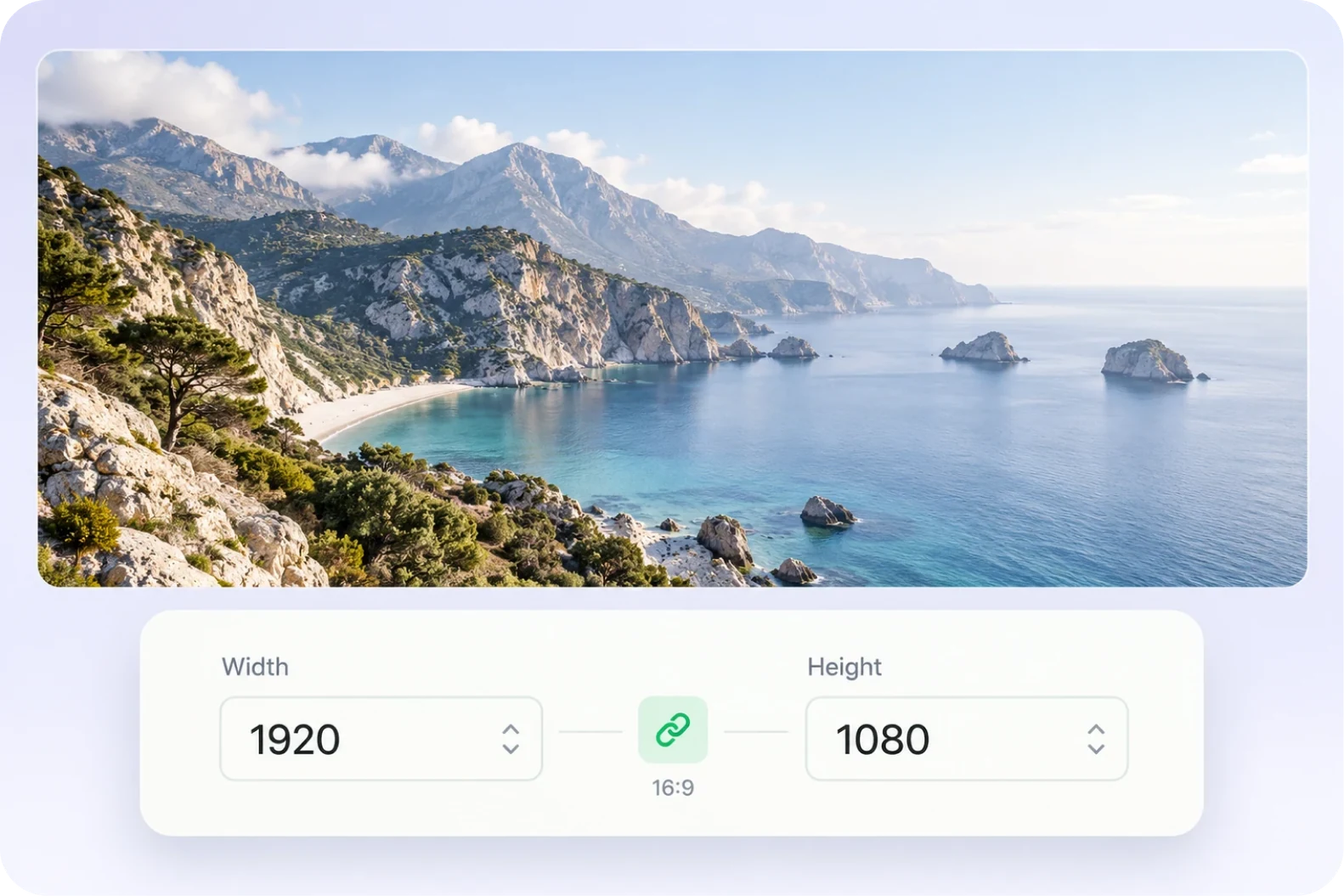
02 / CUSTOM DIMENSIONS
Set the width, let the ratio follow.
Enter exact dimensions, or lock the ratio and change only the width so the height follows. For an unusual slot, set the canvas to whatever is required.
Set custom dimensions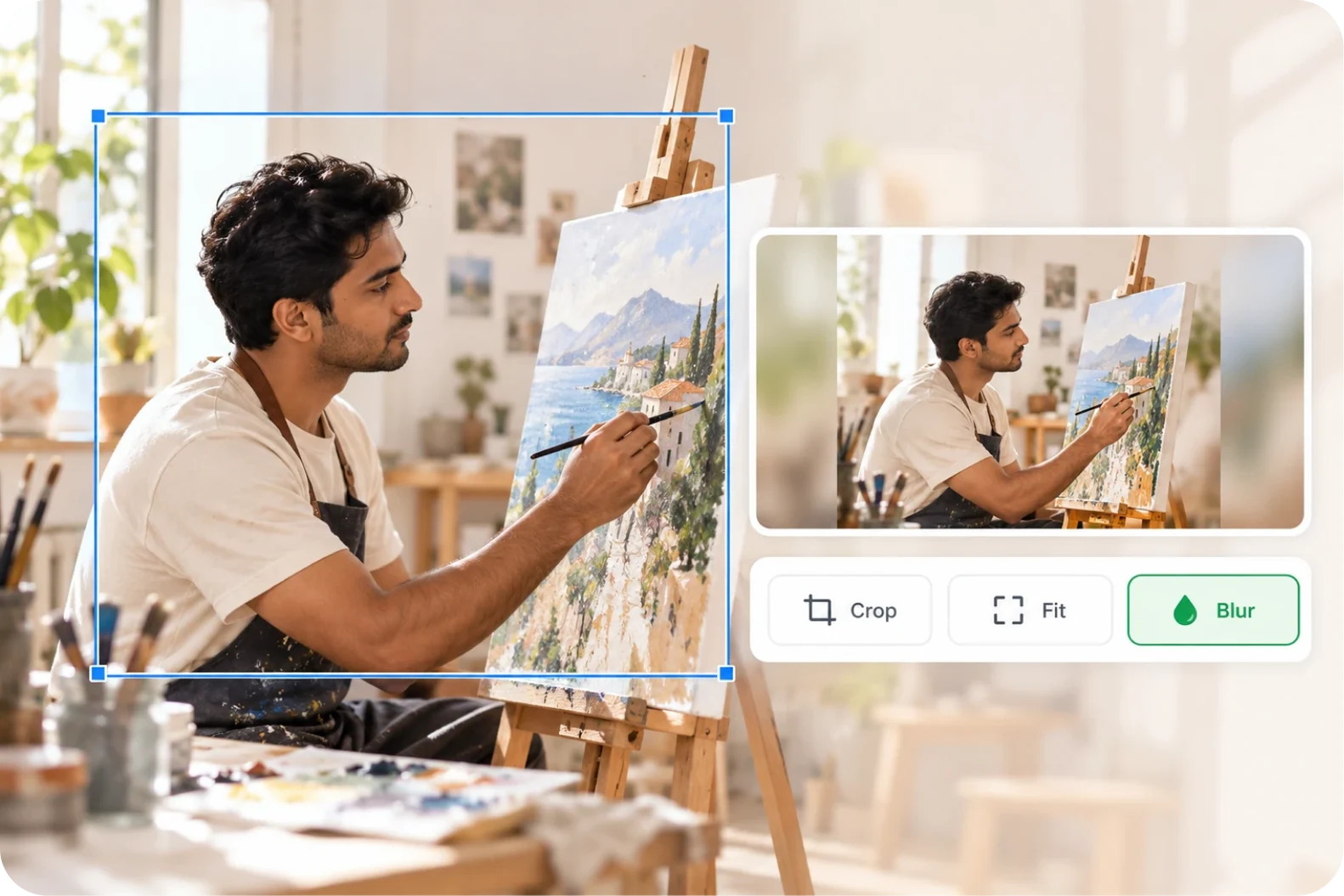
03 / CROP & FIT
Crop a little, or keep all of it.
Drag the crop box to choose what stays in frame, and fill the rest with bars or a blurred background when the video does not fit. The composition is yours to decide.
Try fitting the frame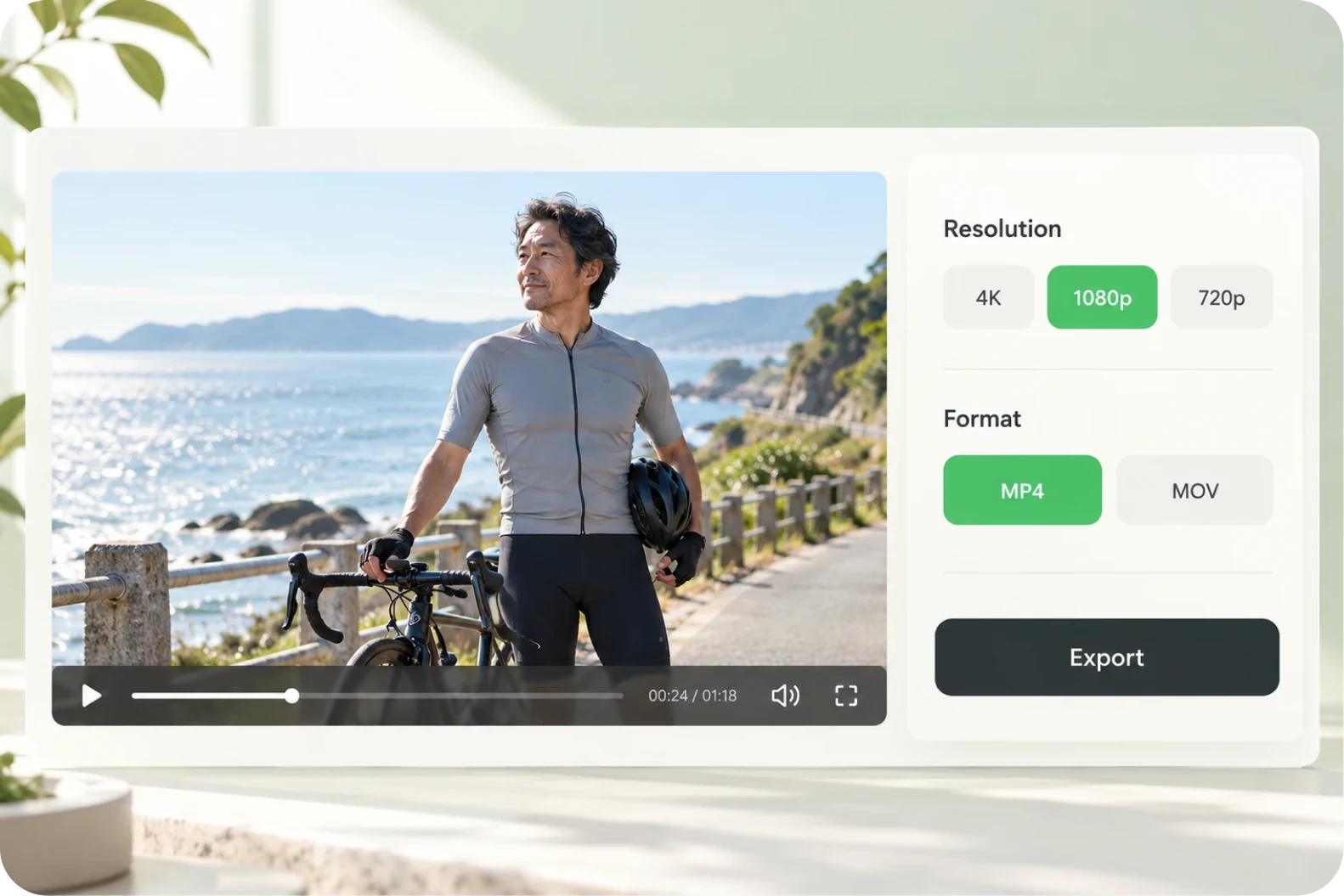
04 / RESOLUTION & FORMAT
Set the resolution, then take the file.
Choose 4K, 1080p or 720p at export, and pick the output format. Resize first, then set the export options for where it is going.
See the export settingsHow It Works
Four steps, and the canvas is set.
From importing the footage to downloading the result, adjust the frame as needed.
Import your video
Put the video you want to resize into the project.
Choose a size
Pick a platform preset, or enter a custom width and height.
Adjust the frame
Drag the crop box to keep the part you want, and fill the frame with bars or a blurred background if you need to.
Export
Choose the resolution, export, and download the resized video.
Let the content appear complete and clear.
Resizing is not about forcing a video into a frame. It is about letting the same content appear complete and clear on every platform.
Start from what the platform asks for
Pick a common size, and use custom dimensions when something specific is required.
The composition is yours
Crop, bars or a blurred background — choose what suits the content in the frame.
Size and export decided together
Set the canvas, then pick the resolution and format for the place it is going.
User Reviews
Testimonial placeholder
Testimonial placeholder · this space is reserved for real user feedback.
Publishing short-form video
Testimonial placeholder
Horizontal footage moved to vertical without losing the point of the shot
Multi-platform distribution
Testimonial placeholder
One video resized into the dimensions several platforms ask for
Product display
Testimonial placeholder
The ratio set to match the detail page, with the product fully in frame
Frequently Asked Questions
A few more things
worth knowing about size
Sort out the canvas, the ratio and the sharpness first, then decide how to change it.
Is size the same as resolution?
No. Size is the width, height and ratio of the frame. Resolution is how sharp the picture is. The two are set separately.
Will resizing crop the picture?
When the ratio changes, either part of the frame is cropped or the rest is filled with bars or a background. It depends on what you choose.
Can a vertical video become horizontal?
Yes. Pick the matching preset or enter custom dimensions, and fill the extra space with bars or a blurred background.
Is resizing the same as compression?
No. Resizing changes pixel dimensions or the frame shape. Compression concerns file size and encoding, although resizing can also affect file size.
Does higher export resolution restore detail?
No. Increasing pixel dimensions cannot recover detail absent from the source.
The same content reads differently
in landscape and in portrait.
Get the size right and it holds up on each platform.