
Talking-head editingRemove pauses and filler to make your take ready to publish
Turn talking-head, interview and lesson recordings into tighter edits by removing repetition, pauses and tangents while keeping the delivery natural and editable.
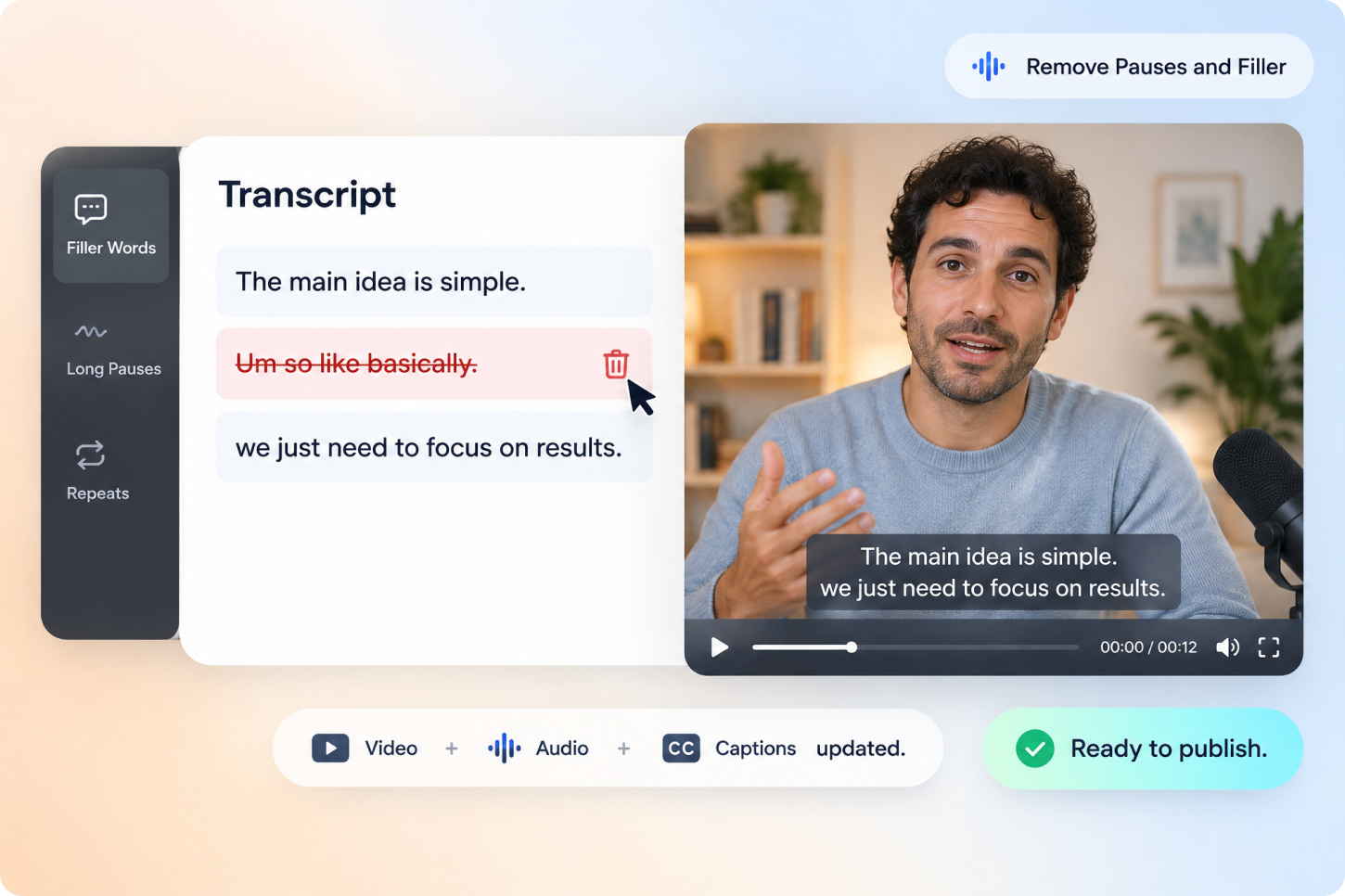
Let AI handle the most time-consuming cleanup
No need to record again. Clean up the pauses, repetition and tangents first, then start fine-tuning.
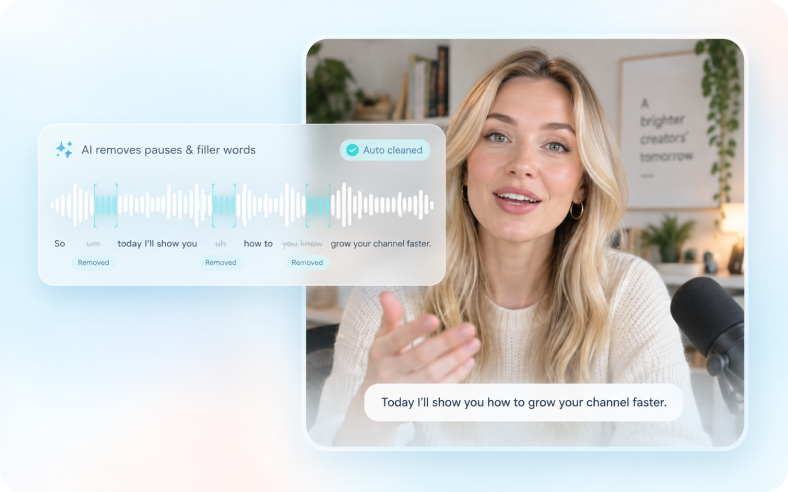
Clear pauses and filler words
Detect dead pauses, filler words and unfinished phrases to make the delivery tighter.
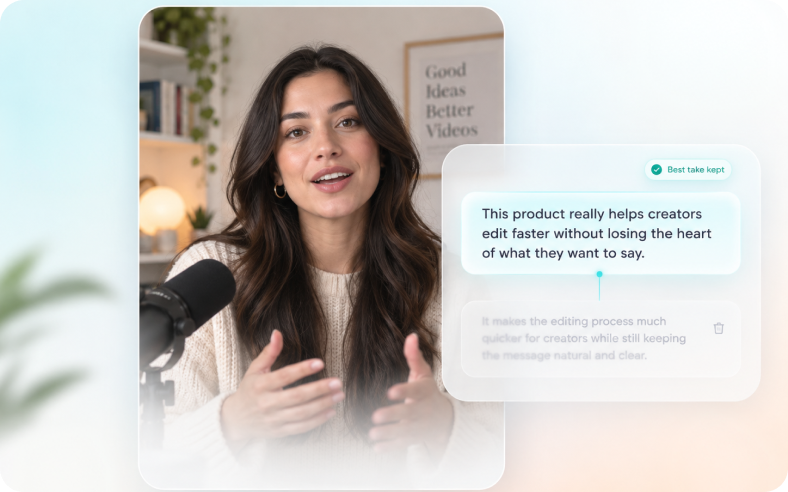
Handle repeated statements
Find points you explain more than once and trim the redundancy without losing the meaning.
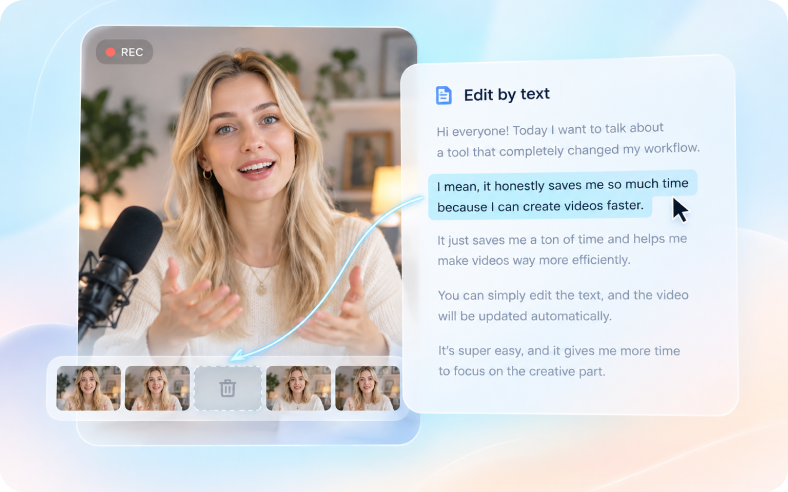
Editing through text
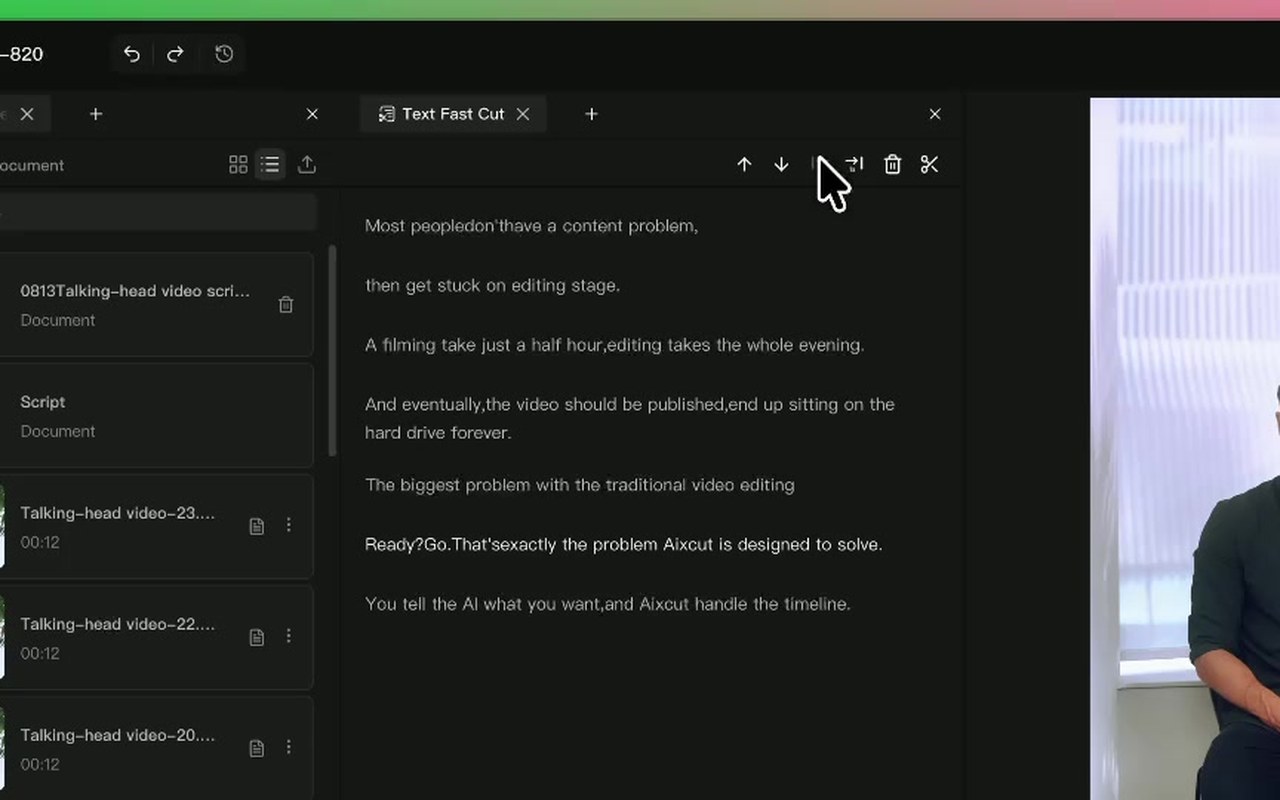
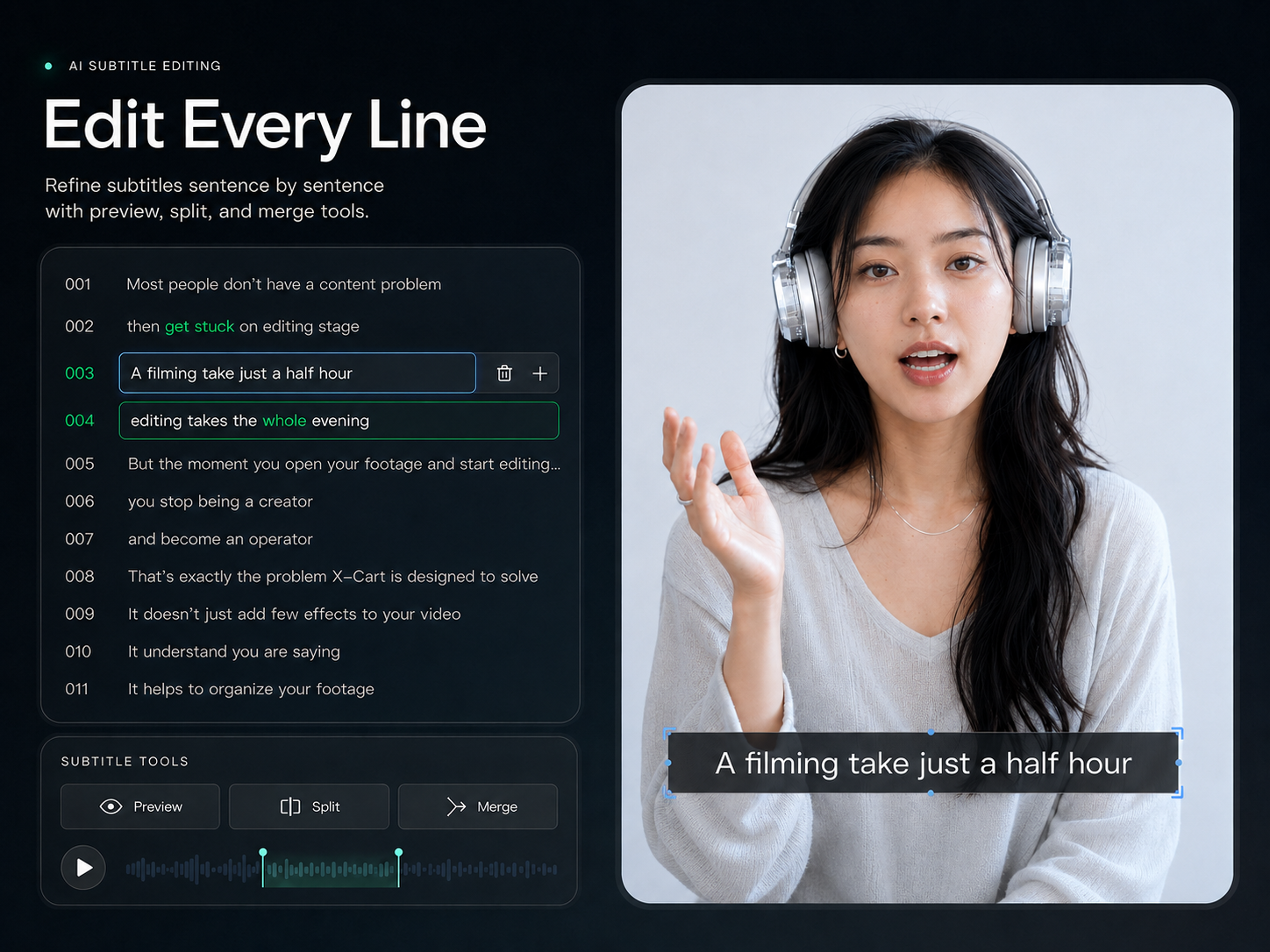
Locate content in the transcript. Delete a sentence and the matching clip adjusts with it.
Cut what should go,
keep what should stay.
AI finds repetition and dead weight, but it does not decide what is worth keeping. Review the suggestions, then make the call yourself.
Trim the pauses, never the point.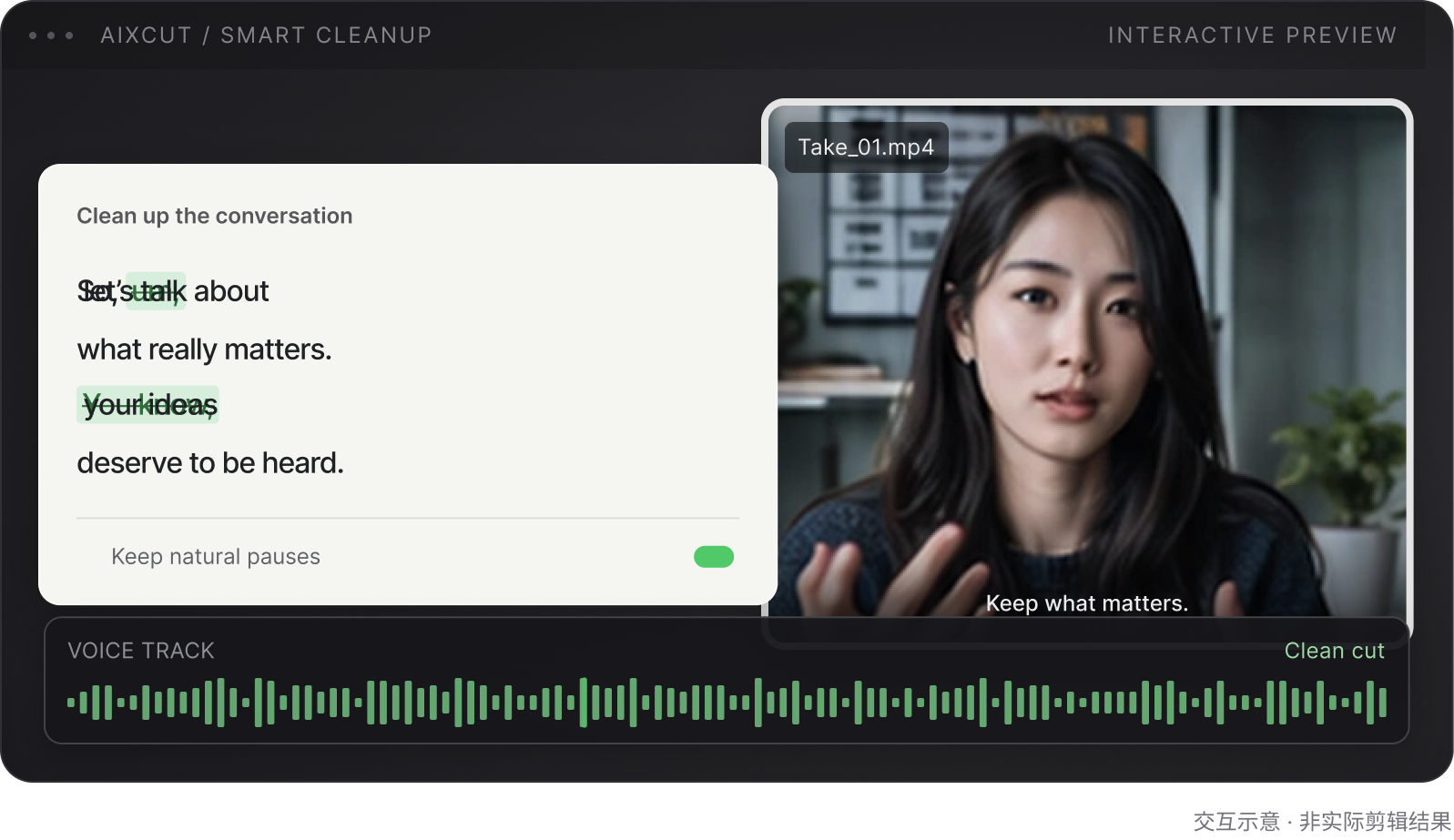
Every kind of talking-head video
can keep a clearer message.
From knowledge sharing and lessons to product explainers, bring the content back to the point.
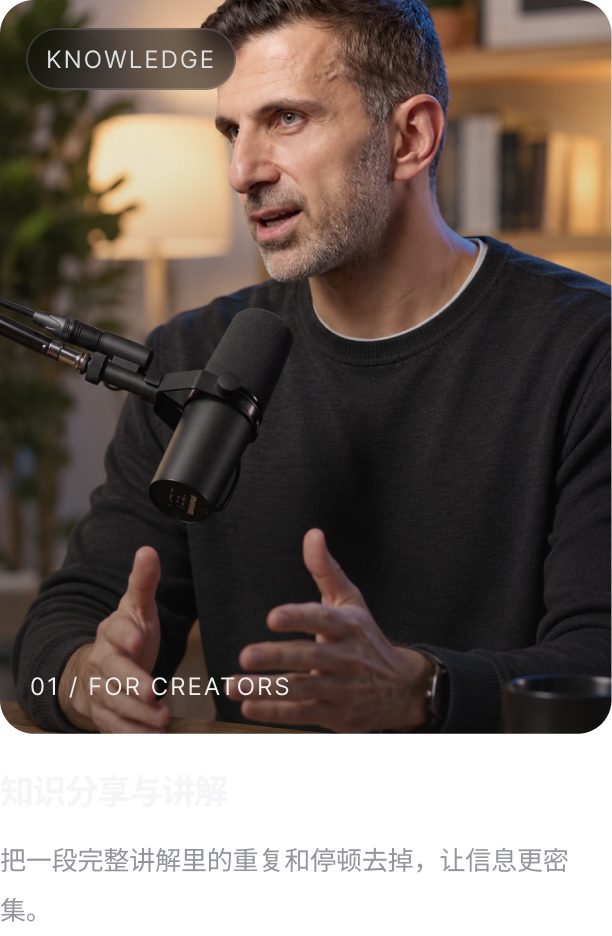
Knowledge sharing and commentary
Remove the long way around so the point lands faster.

Lessons and teaching
Tidy the order of explanation while keeping the context and examples that matter.

Product and service explainers
Cut repeated selling points and state the core message more directly.

Everyday talking-head videos
Keep your tone so the finished video still sounds like you.
FROM FOOTAGE TO A FINISHED STORY
A smooth talking-head cut in four steps.
Upload your footage, clean it up, review the result and publish.
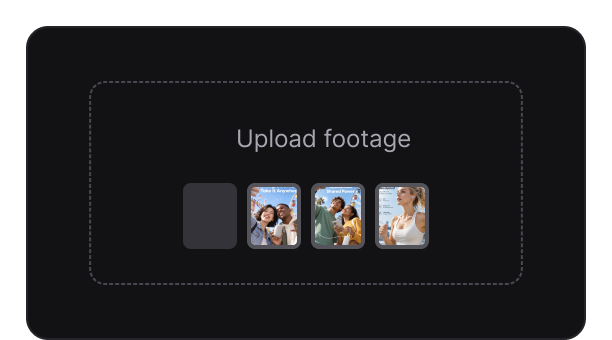
Upload talking-head footage
Add a talking-head, interview or lesson recording to a project.
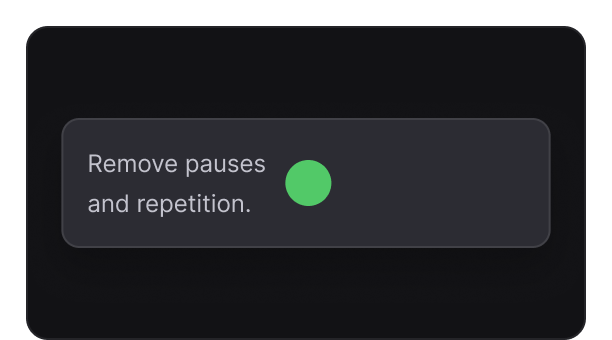
Remove pauses and filler
AI finds the repetition and dead weight that can be cleaned up.
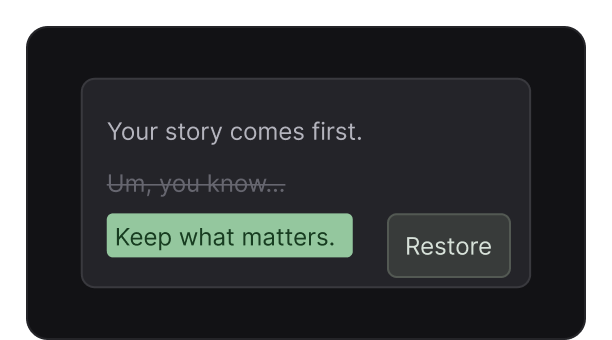
Review and adjust
Approve the suggested cuts and keep what fits your judgment.
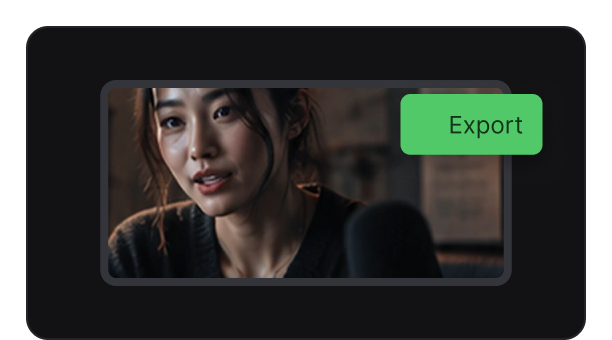
Preview and export
Check the visuals, captions and audio, then export your version.
LESS REPETITION. MORE YOU.
Aixcut trims the padding, not the message.
Give AI the busywork and keep the judgment.
Keep the full context of the delivery
Review results against your goals so automation never changes what you meant.
Stay natural after the cuts
Review results against your goals so automation never changes what you meant.
Show suggested edits clearly
Review results against your goals so automation never changes what you meant.
Undo and keep adjusting anytime
Review results against your goals so automation never changes what you meant.
Balance the message and on-screen pacing
Review results against your goals so automation never changes what you meant.
One recording, many versions
Review results against your goals so automation never changes what you meant.
USER REVIEWS
How 8 creators and editors rate Aixcut talking-head editing
Real working impressions from a range of content types.
“After removing the pauses, the delivery finally sounds like one clean take.”

“I can read the transcript first, then decide what needs to stay.”

“It did not cut my tone into someone else.”

“Lesson content comes together far faster.”

“Repeated points jump out immediately.”

“I can keep refining it myself after the first cut.”

“Great for making sense of a long recording first.”

“Reviewing suggestions beats scrubbing the timeline blindly.”

A FEW THINGS TO KNOW
Questions, answered
About cleanup, trimming and the final call.
Will AI strip out my tone too?
No. AI focuses on pauses, repetition and clearly dead weight, and you still decide whether to keep each line.
Can I remove just one section?
Yes. Locate the content in the transcript and remove or adjust only that clip.
Does it work for long videos?
Yes. Map the main thread of a long recording first, then clean it section by section into a publishable version.
Can I keep editing afterward?
Yes. AI produces an editable first draft, and you can undo, change cut points and adjust captions and pacing.
Do I need a script first?
No. You can organize the recording as it is, or use a script to check whether the delivery matches the plan.
Where this capability fits
Understand the full delivery before trimming. Keep necessary conditions, transitions and tone instead of shortening the edit at the cost of meaning.
Use the transcript to find repetition, mistakes and tangents, then return to the footage to check expression, pauses and continuity.
Start with a focused talking-head cut, then refine each section with the transcript, preview and timeline until it fits your voice.
Start with a clear process
- 01
Upload the recording and describe the target length and content that must stay.
- 02
Review the transcript and mark repetition, tangents and essential lines.
- 03
Review the first cut and refine boundaries, pacing and captions on the timeline.
Describe what you need
Use this as a starting point. Adapt the assets, audience and goal, then review the result.
Cut this talking-head recording to about 60 seconds. Keep the core point and necessary conditions, remove repetition, obvious mistakes and unrelated tangents. List the proposed cuts first, then create an editable first draft.
Review before delivery
- Does the shortened edit preserve the complete point?
- Are necessary conditions, negation and transitions still present?
- Do the cut points feel natural, with synced sound and captions?
Questions, answered
What footage works well for talking-head editing?
It works well for talking-head videos, interviews, podcasts, lessons and educational content. Clear audio and a defined content thread produce better results.
Can I remove only one sentence?
Yes. Locate the sentence in the transcript, then check whether the surrounding meaning, visuals and audio still flow naturally.
Can I adjust the edit after AI finishes?
Yes. AI creates an editable first draft. You can adjust clips, cut points, order, captions and pacing.
Do I need a script first?
Not necessarily. You can organize the spoken content as recorded, or use a script to check whether the delivery matches the intended message.
Explore related workflows

Read the related guides
Bring your footage. Start with a clear goal.
Apply the workflow to your own content, review each step and refine the finished video.