
Aixcut automatically addsB-roll
Show what you mean, right when you say it.
Use supporting visuals to explain narration and script details. Choose relevant footage for specific lines and place it where the story needs clarification or a transition.
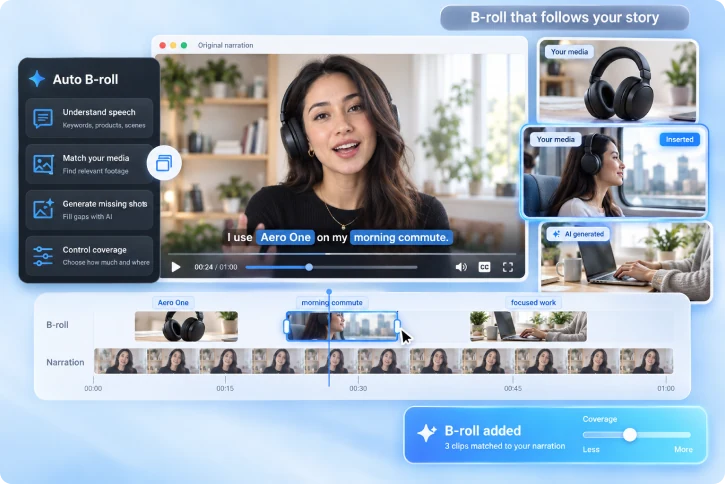
Visuals follow the content, not just fill the background.
Give every B-roll shot a clear explanatory job so viewers understand what you are saying faster.
Keyword and meaning detection
Detect the keywords and phrases in your narration worth explaining with a visual.
Automatic footage matching
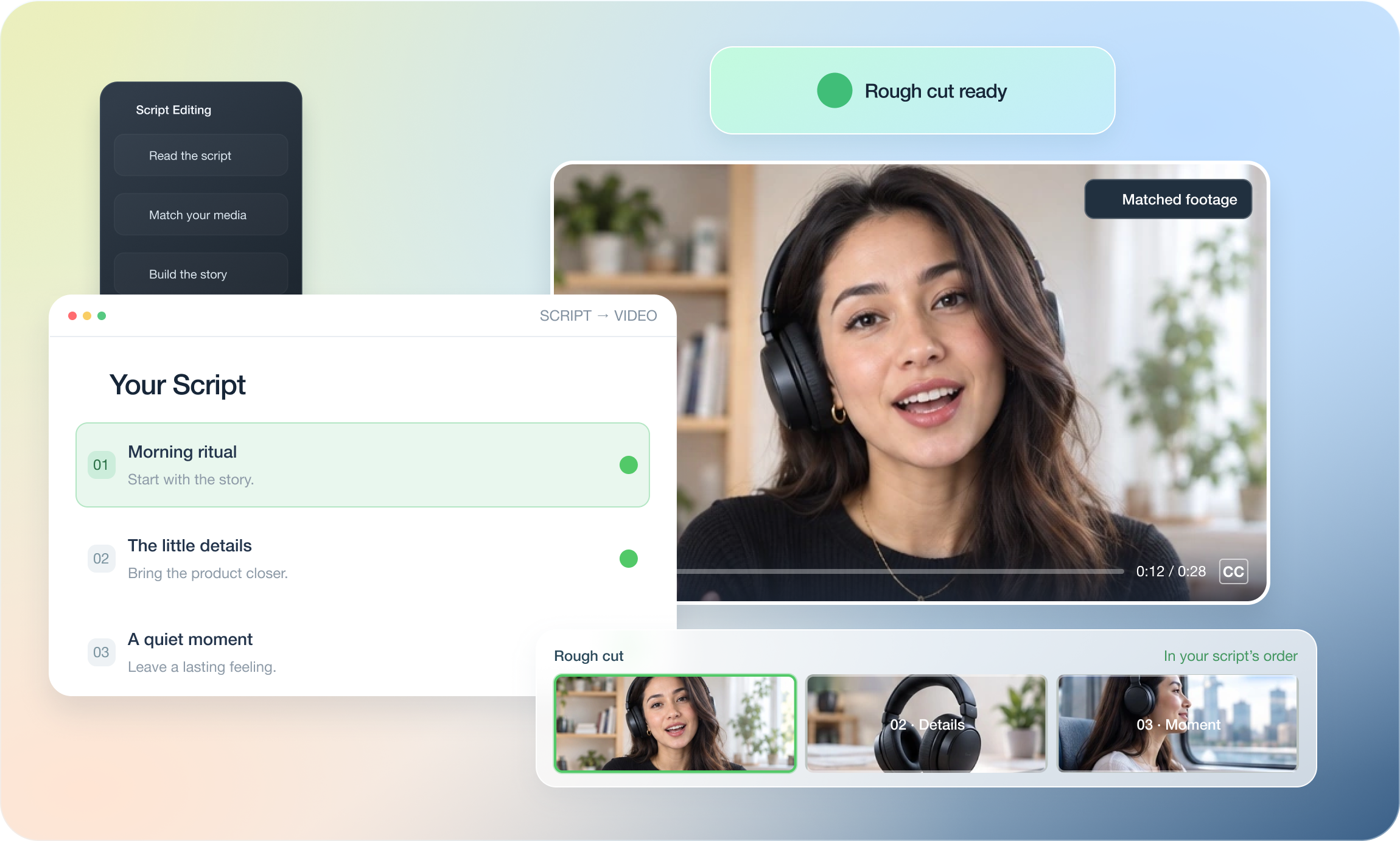
Match shots from your own footage first, based on what is being said.
Frame-level control
Check how visuals line up with the audio so B-roll lands at the right moment.
BUILD CONTENT AROUND YOUR CONTENT
Show viewers what you are talking about.
Understand your narration first, then place the right visuals in the right spot.
02 / YOUR MEDIA COMES FIRST
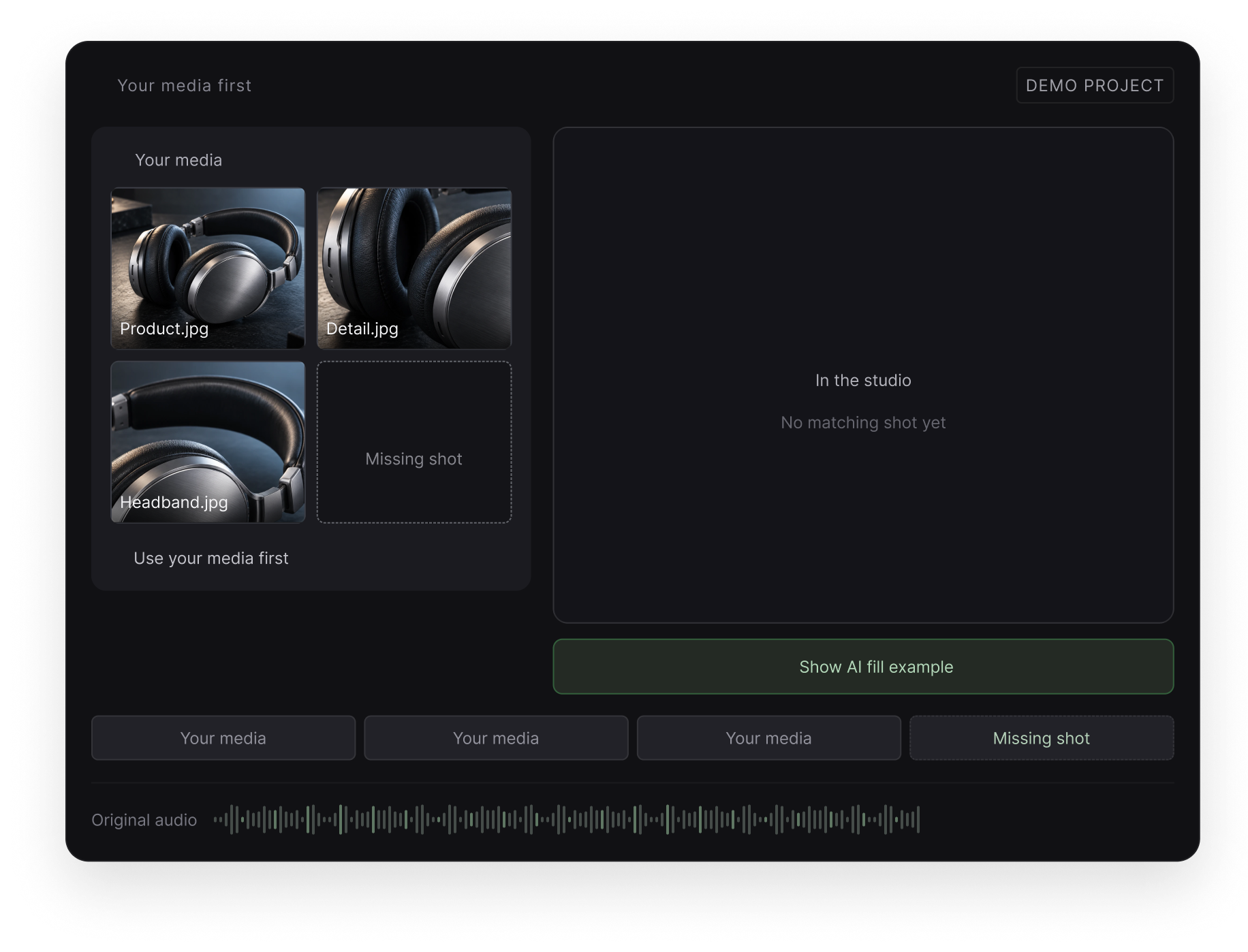
Use your own footage first,
then fill the gaps.
Match the products, people and environments you have already uploaded first, then add or generate what is missing.
MADE FOR EVERY STORY
Not more visuals. Clearer content.
Product, knowledge, tutorial and lifestyle content can all be supported with visuals that match the meaning.

Product explainers and sales
When you mention a feature, cut to the product so viewers see what you mean.
People + product detail
Knowledge sharing and explainers
Add matching visuals when explaining a concept or a process so viewers can follow.
Concept + process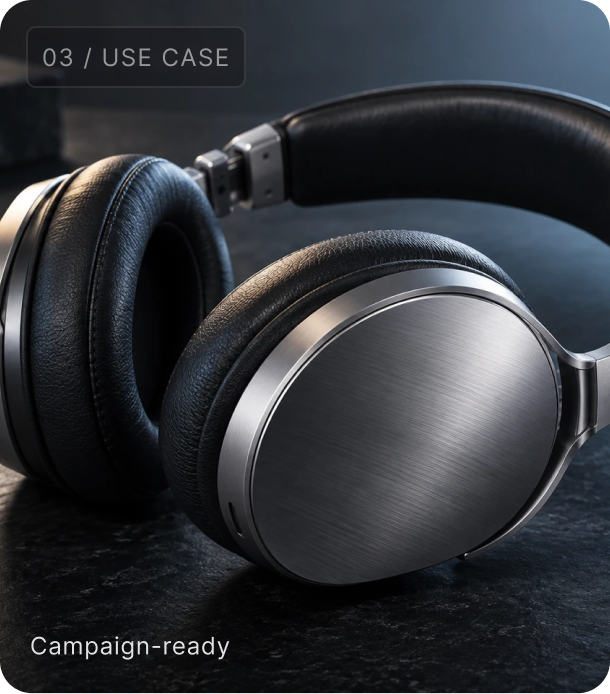
E-commerce and ad creatives
Turn talking-head footage into visually rich ad creative, fast.
Narration + commercial product shots
Social media short videos
Add visual variety to a plain talking-head video so viewers are less likely to scroll away.
Delivery + scene visualsFROM B-ROLL TO A FULLER STORY
Upload, describe, review: fill the visuals in three steps.
Hand the footage to AI first, then confirm every visual actually serves the content.
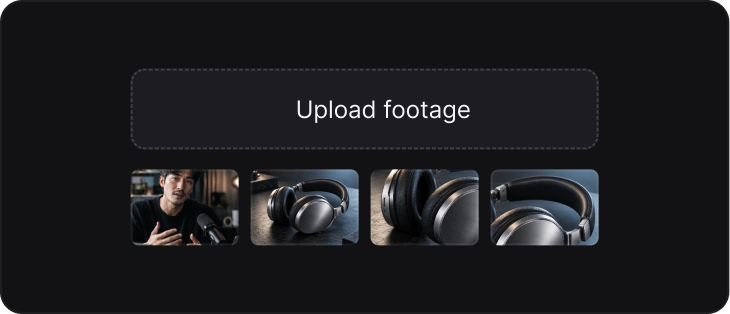
Upload narration and footage
Add the talking-head video and existing footage to a project.
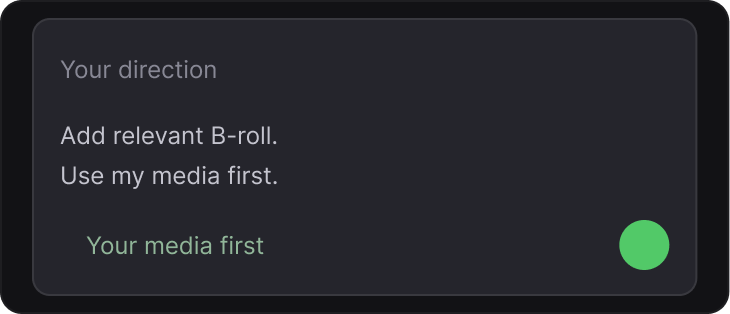
Describe the visual you need
Tell Aixcut what content to add and the visual direction you want.
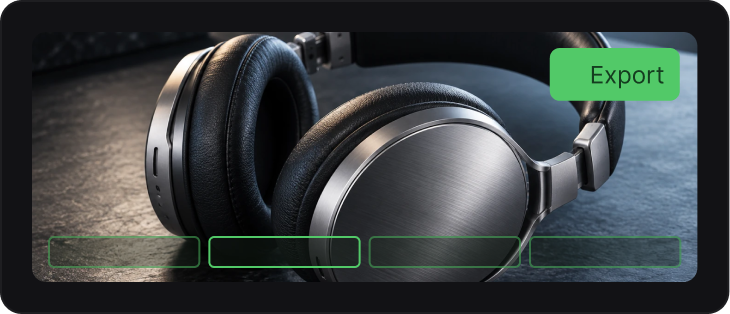
Review visuals and export
Confirm the matches, adjust placement, then export the video.
LESS SEARCHING. MORE STORYTELLING.
Let the content decide the visuals, not an even split.
Put B-roll where it genuinely needs to explain something and leave the attention on the story.
Understand first, then match
Check results against the current content and cut down on pointless searching and switching.
Your footage comes first
Check results against the current content and cut down on pointless searching and switching.
Judge visuals sentence by sentence
Check results against the current content and cut down on pointless searching and switching.
Give every visual a reason
Check results against the current content and cut down on pointless searching and switching.
Never cover the key message
Check results against the current content and cut down on pointless searching and switching.
One asset, many uses
Check results against the current content and cut down on pointless searching and switching.
GOOD QUESTIONS. CLEAR ANSWERS.
Questions, answered
About footage matching, B-roll and the final call.
Does it generate B-roll automatically?
It matches visuals from your narration and your footage. Whether to use them and how to adjust stays your call.
What footage should I prepare?
Upload footage of products, processes, environments or people. The closer it is to the content, the more usable the matches.
What if there is no suitable visual?
The workspace flags the gap. You can add footage, adjust the description or keep the original talking-head shot.
Should I review AI-generated visuals?
Yes. Before publishing, confirm the visuals match the narration and check product details, text and body movement.
What if I only have one product video?
That works. Aixcut works with what is available and avoids reusing the same shot unnecessarily.

Where this capability fits
Prioritize abstract ideas, difficult explanations and demonstrations. Every supporting shot should have a purpose rather than simply covering the speaker.
Look through existing footage before generating or filming more. Real product details, results and actions need authentic visual evidence.
Time each insert so viewers can understand both image and narration. Avoid obscuring essential actions or captions.
Start with a clear process
- 01
Mark lines that need explanation or demonstration.
- 02
Match available footage and list remaining visual gaps.
- 03
Review each insert’s timing and relationship to the audio.
Describe what you need
Use this as a starting point. Adapt the assets, audience and goal, then review the result.
Add supporting visuals only while the speaker explains the organization steps. Prefer uploaded footage, preserve the original voice and keep essential captions visible.
Review before delivery
- Does the shot relate to the current sentence?
- Is there enough time to understand it?
- Do narration, captions and visuals compete?
Questions, answered
What if there is no suitable footage?
First consider whether text or the original shot explains the point. If another visual is needed, create or film supporting material and check its accuracy.
Is more B-roll always better?
Density should follow the information. Frequent cuts can distract, so allow time to understand both the speaker and the supporting visuals.
Explore related workflows

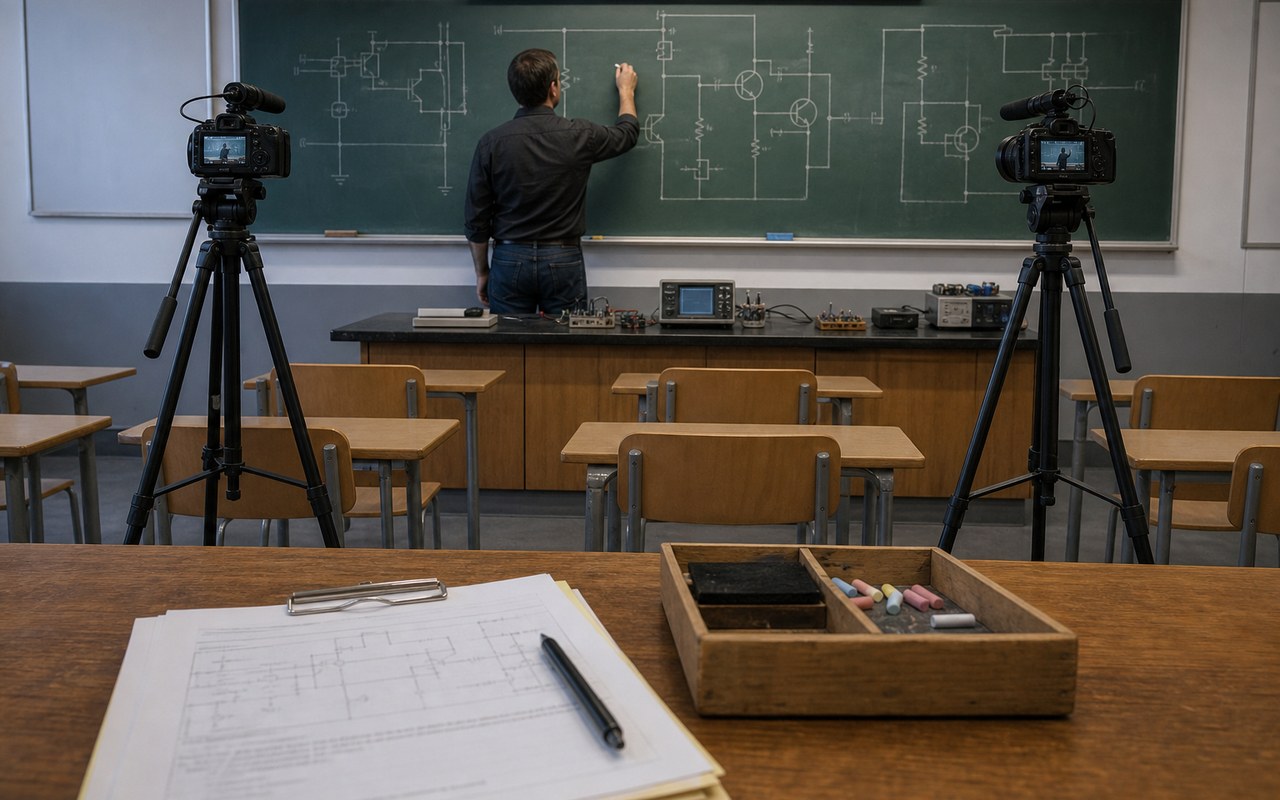
Read the related guides
Bring your footage. Start with a clear goal.
Apply the workflow to your own content, review each step and refine the finished video.