
Audio extractor
Sound from a video,
saved on its own
Save the existing audio from a video as a separate file. Import your footage, review the sound, and choose MP3, AAC, or WAV audio export for your next workflow.
Demo is a visual and interaction illustration, no real service is connected.
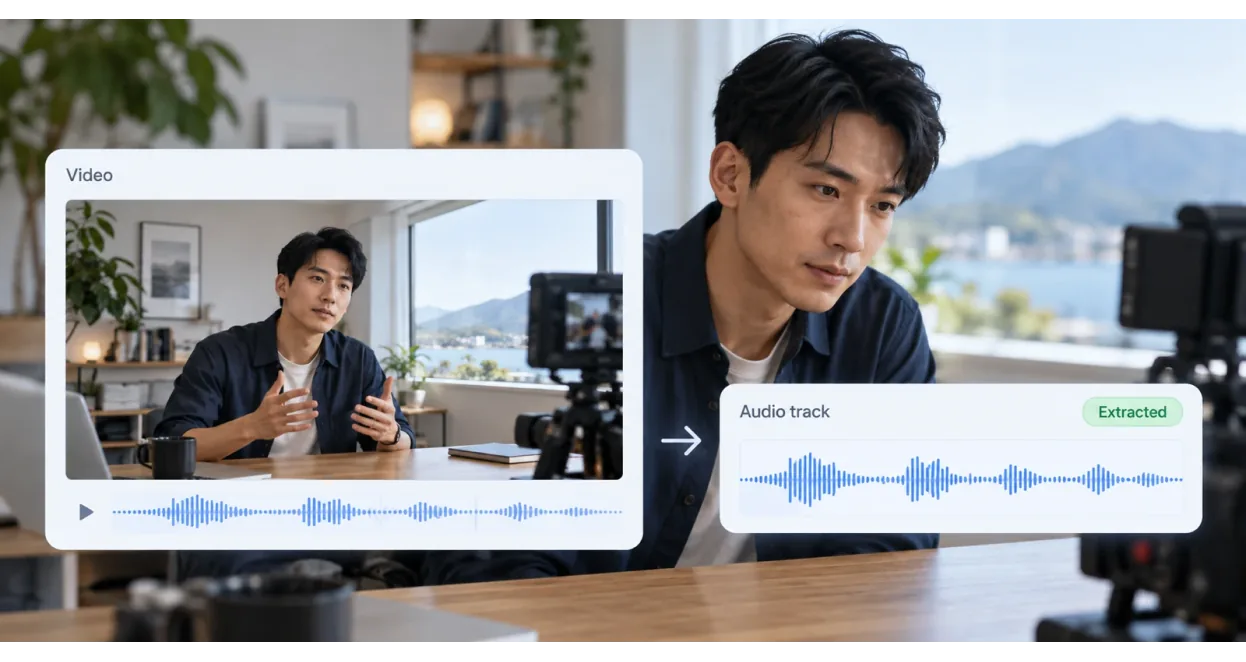
One track, carried into the next step.
Video
Your original material
Separate audio track
Handle the sound on its own
Export or keep using it
Transcript · Captions · Voiceover
USE CASES
After the picture,
the sound has other uses.
Keep the sound from a video you already have, then use it as material, keep the original audio, or turn it into text.

SCENE 01
Reusing material
Pull the music and sound effects out of a video and use them in a new one.
SCENE 02
Re-editing
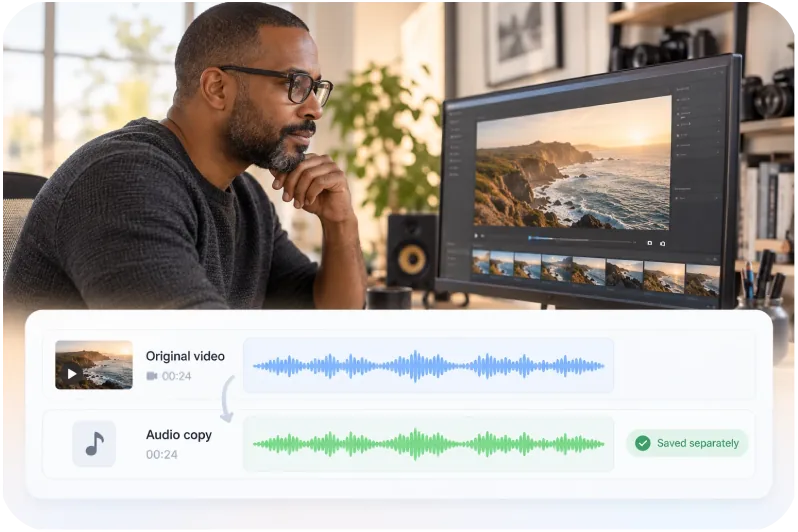
Keep a copy of the original audio before swapping in a new voiceover.

SCENE 03
Transcription and captions
Extract the audio from a long video first, then transcribe it, which saves time on the cleanup.
CORE FEATURES
Taken out of the video,
still in the project.
Extract, export, transcribe. Send one track where it is needed.
FEATURE 01 / EXTRACT
The full track,on its own.
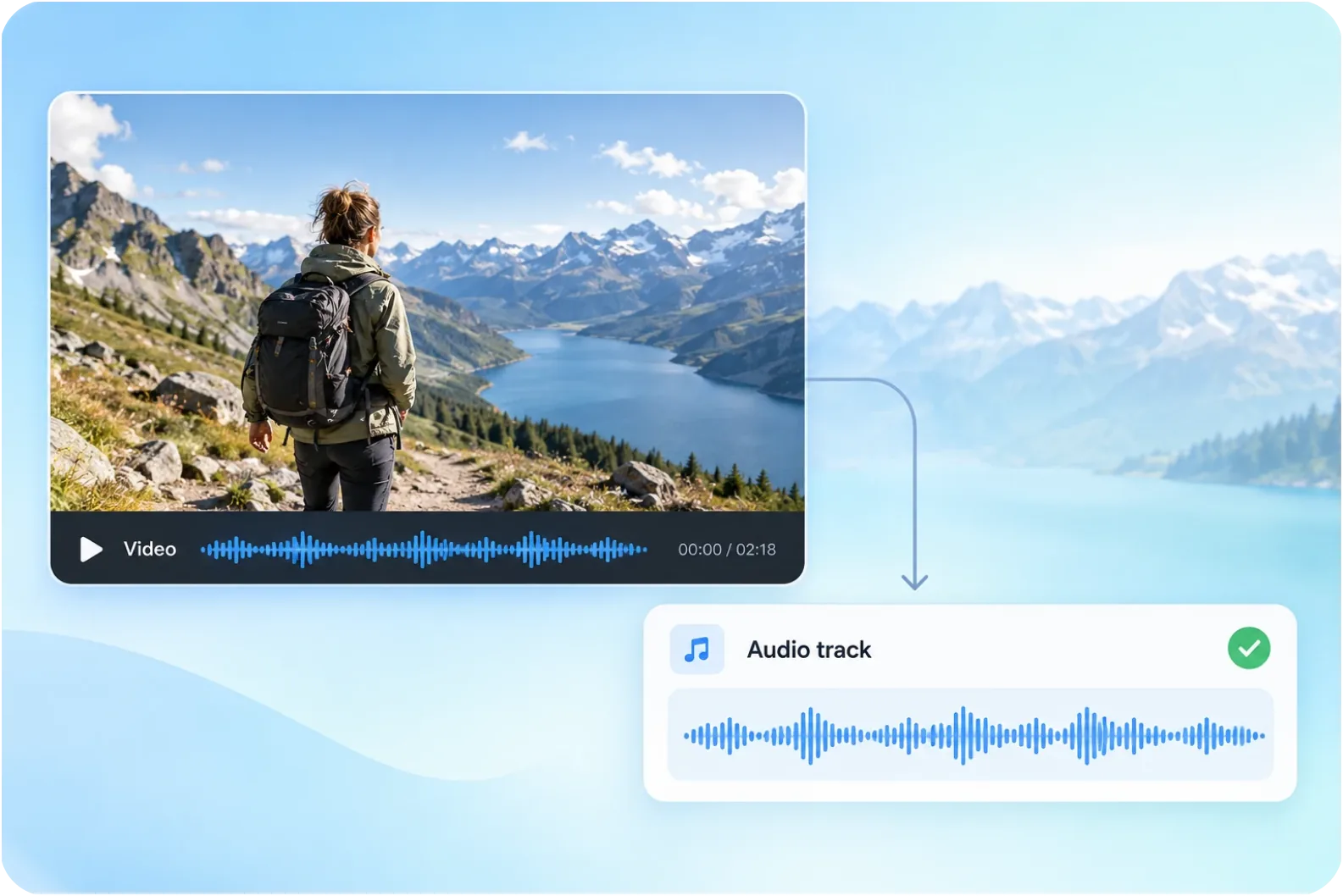
Take the full audio track out of a video so it becomes one track that can be handled on its own.
Track Extraction
FEATURE 02 / EXPORT
Export the audio,use it elsewhere.
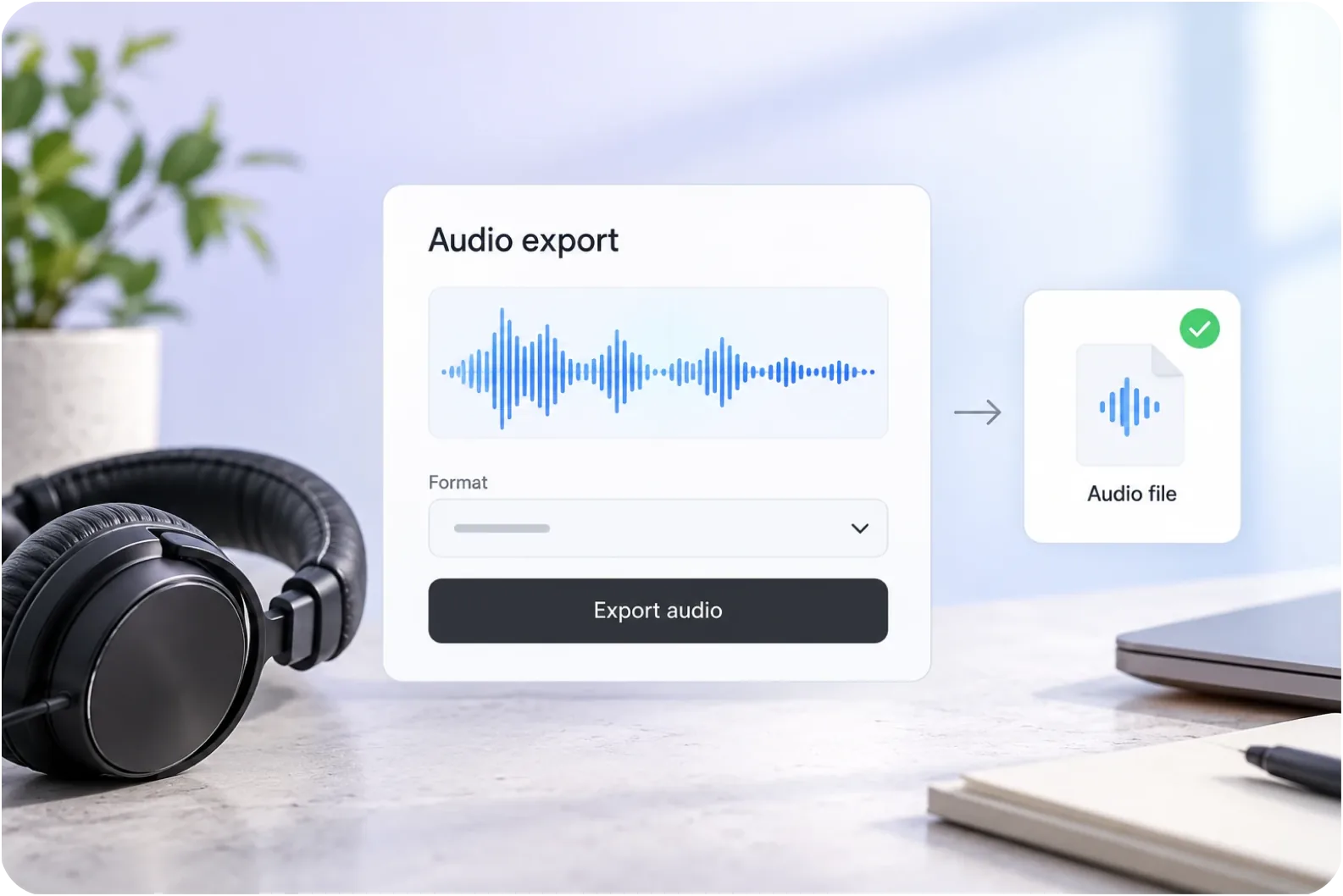
Export the extracted audio as a file in the format you need.
Audio Export

FEATURE 03 / TRANSCRIBE
Take the sound out,put the text on.
Turn the extracted audio straight into a transcript and captions.
Audio-to-Text
HOW IT WORKS
Four steps to give the sound its own track.
From upload to export, or keep editing in the project. The steps below are a demo.
Upload the video
Put the video you want audio from into the project.
Extract the audio
Choose to extract the track, and Aixcut pulls the audio out of the video.
Decide what it is for
Export the audio file, or use it in the project for transcription, captions, or a new voiceover.
Export or keep editing
Export the audio, or leave it in the project and finish the video there.
WHY AIXCUT
Once it is extracted, it stays in the project.
Extracted audio never has to leave the project: export it when you want a file, or use it there for transcription, captions, and a new voiceover, without the import-and-export step.
Export it when you want a file
Keep the extracted audio on its own for later material, a podcast or an archive.
Turn it into text when you want to organise it
Carry on from the existing track to make a transcript and captions, and finish the work in the project.
Keep editing when you want to carry on
Stay in the project to record a new voiceover and keep editing towards the finished video.
FAQ
About audio extraction,
a few things worth knowing.
From file formats to what comes next, a few common questions first.
Which video formats are supported?
Common video formats work directly. The formats that are accepted are listed when you upload.
Does the extracted audio lose quality?
It depends on the source. The cleaner the original video, the better the extracted audio.
Does extracting the audio change the video?
No. It takes the track that is already in the video, and the video stays as it is.
Do I need to extract audio before transcription?
No. Aixcut can transcribe supported video files directly.
Take the sound from a video
into the next piece of work.
The audio inside a recording can go on to become a podcast, material for something else, or an archive. Let Aixcut take the track out and those paths open up.